

How to Fix IQOS ILUMA Standard

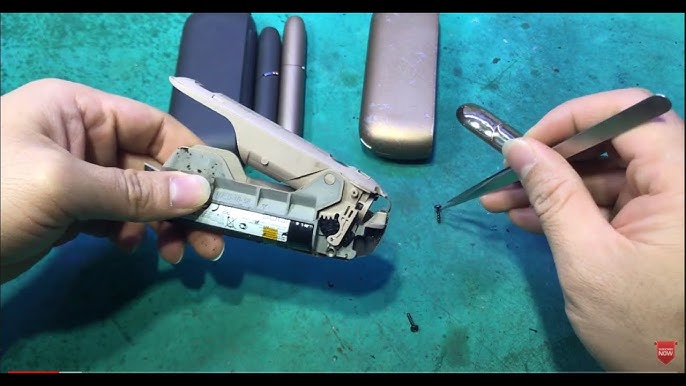
The IQOS ILUMA Standard is a premium heated tobacco device that uses advanced induction heating technology instead of a blade. While this makes it more reliable than older models, users may still experience issues such as not turning on, charging problems, weak vapor, or error lights.
The good news is that most problems can be fixed easily at home with proper troubleshooting. This guide will walk you through all common issues and how to fix them step by step.
Understanding IQOS ILUMA Standard
Before fixing anything, it’s important to understand how the device works.
The IQOS ILUMA Standard consists of:
- A holder (used for smoking)
- A pocket charger
- Uses TEREA sticks only
Unlike older IQOS devices, it does not have a blade, so cleaning is minimal. However, it still depends on:
- Battery performance
- Proper stick insertion
- Clean electrical contacts
Most problems fall into four categories:
- Power issues
- Charging problems
- Heating issues
- Performance issues
1. Device Not Turning On
This is one of the most common issues.
Possible Causes:
- Battery completely drained
- Software glitch
- Faulty charging
How to Fix:
Step 1: Charge the Device
- Place the holder inside the pocket charger
- Charge for at least 20 minutes
- Wait for LED lights to appear
A fully drained device may take time before lights show
Step 2: Reset the Device
- Press and hold the charger button for 10 seconds
- Wait until lights blink
Resetting solves most system errors
Step 3: Check Charger
- Try a different cable or adapter
- Use original accessories if possible
2. Device Not Charging
Charging issues can stop your device from working.
Possible Causes:
- Dirty charging contacts
- Faulty cable
- Battery degradation
How to Fix:
Clean Charging Contacts
- Remove the holder
- Use a dry cloth or cotton swab
- Clean both holder and charger connectors
Dirty contacts are a common cause of charging failure
Try Another Charger
- Use a different cable
- Avoid damaged or low-quality chargers
Check Charging Behavior
- If no light appears, battery may be faulty
3. Red Blinking Light Error
A red blinking light usually indicates a system issue.
Possible Causes:
- Device overheating
- Internal error
- Battery problem
How to Fix:
Reset the Device
- Hold the button for 10 seconds
- Wait for restart
Most red light issues are resolved by reset
Let Device Cool Down
- Stop using for 10–15 minutes
- Avoid hot environments
Charge Fully
- Low battery can trigger errors
If the red light continues, the device may need professional service.
4. Device Not Heating
If the device turns on but does not heat, it can be frustrating.
Possible Causes:
- Wrong stick type
- Improper insertion
- Software glitch
How to Fix:
Use Only TEREA Sticks
- ILUMA devices do NOT support HEETS
- Using wrong sticks prevents heating
Insert the Stick Properly
- Insert gently without twisting
- Ensure it is fully seated
Start Heating Manually
- Press the button for 2 seconds
- Wait for vibration
5. Weak Vapor Production
Weak vapor reduces satisfaction.
Possible Causes:
- Low battery
- Old or dry sticks
- Incorrect puffing
How to Fix:
Charge Fully
- Low battery reduces heating efficiency
Use Fresh TEREA Sticks
- Old sticks produce less vapor
Take Slow Puffs
- Gentle, steady draws improve vapor
Weak vapor is often linked to battery or stick condition
6. Bad Taste or Burnt Flavor
A bad taste can ruin the experience.
Possible Causes:
- Overheating
- Reused stick
- Environmental conditions
How to Fix:
Use a New Stick
- TEREA sticks are single-use only
Avoid Chain Puffing
- Give time between puffs
Check Storage Conditions
- Avoid heat and humidity
7. Auto-Start Not Working
The ILUMA Standard normally starts heating automatically.
Possible Causes:
- Incorrect stick insertion
- Feature disabled
- Sensor issue
How to Fix:
Reinsert the Stick
- Remove and insert again properly
Start Manually
- Press the button to begin heating
Auto-start issues are often due to insertion errors
8. Short Usage or Fewer Puffs
Possible Causes:
- Fast puffing
- Low battery
- Device temperature
How to Fix:
Take Slow Puffs
- Improves session duration
Charge Fully
- Low battery shortens sessions
Use in Proper Temperature
- Ideal range is 0°C to 40°C
9. Holder Not Charging in Pocket Charger
Possible Causes:
- Dirty connectors
- Charger issue
How to Fix:
Clean Both Parts
- Clean holder and charger contacts
Reinsert Properly
- Ensure correct placement
10. Stick Stuck Inside Device
Possible Causes:
- Broken stick
- Improper removal
How to Fix:
Remove Gently
- Pull straight out
Use a Toothpick Carefully
- Remove stuck pieces without damage
Check Chamber
- Ensure no debris remains
Maintenance Tips
Even though ILUMA requires less cleaning, maintenance is still important.
Basic Care:
- Clean contacts regularly
- Check chamber for debris
- Keep device dry
What NOT to Do:
- Do not use water
- Do not insert sharp metal objects
- Do not disassemble device
Storage Guidelines
Proper storage improves performance.
Tips:
- Keep in a cool, dry place
- Avoid direct sunlight
- Avoid extreme temperatures
Heat and dust can affect battery and performance
Battery Care Tips
- Do not fully drain battery often
- Avoid overcharging
- Use original charger
- Charge regularly
Good battery habits extend device life.
When to Seek Professional Help
Some problems cannot be fixed at home.
Signs:
- Device won’t turn on after charging
- Persistent red light
- Charging completely fails
- Internal damage
In such cases, service or replacement is needed.
Preventing Future Problems
Best Practices:
- Use only TEREA sticks
- Insert sticks properly
- Clean contacts regularly
- Store correctly
- Avoid overheating
Final Thoughts
The IQOS ILUMA Standard is a reliable and advanced device, but like any electronic product, it can experience issues. Most problems—such as charging failure, heating issues, weak vapor, or blinking lights—can be fixed with simple steps like resetting the device, cleaning contacts, charging properly, and using the correct sticks.
Understanding how the device works and maintaining it properly will help you avoid most issues and ensure a smooth experience. If problems persist even after troubleshooting, professional support or replacement is the best option.
By following this guide, you can diagnose and fix almost all